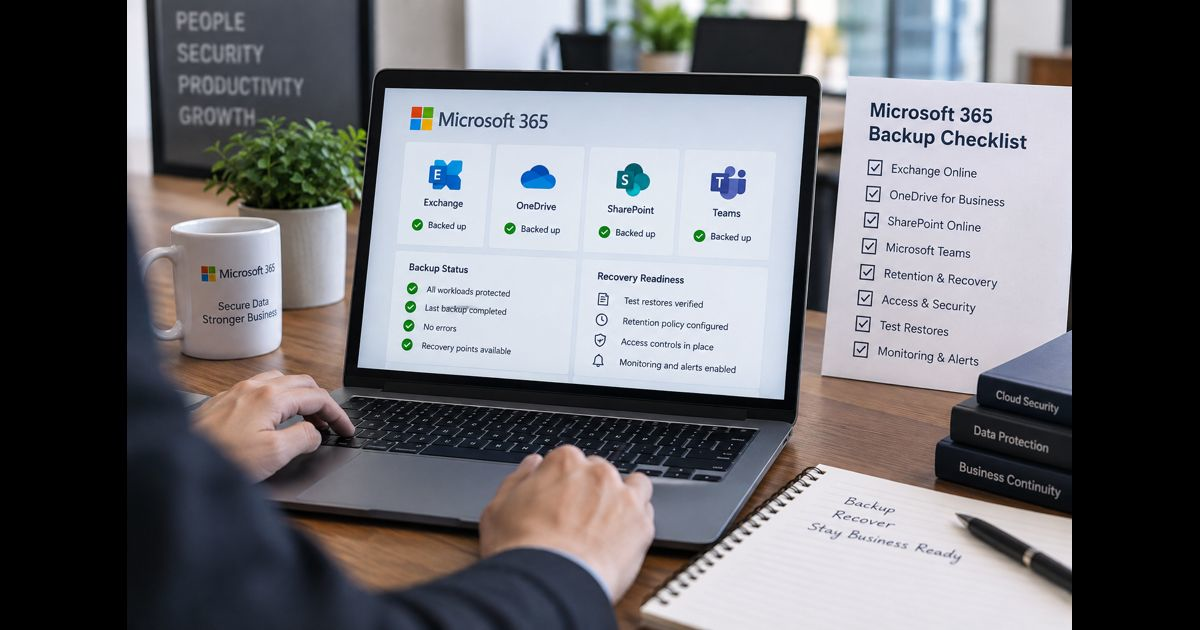
A Microsoft 365 backup checklist should confirm more than whether backups are running. It should identify what data is protected, which recovery points are available, who can authorize a restore, how long recovery takes, and whether restored information has been tested successfully.
Microsoft 365 includes service redundancy, recycle bins, version history, retention controls, legal holds, and a separate Microsoft 365 Backup service. These features solve different problems and should not be treated as interchangeable.
Use this checklist to assess recovery for Exchange Online, OneDrive for Business, SharePoint Online, Teams-related files, shared accounts, departed users, and important tenant configurations.
Microsoft 365 Backup Checklist at a Glance
A reliable backup process should address every applicable item below:
- Assign a primary backup owner and trained alternate.
- Inventory Microsoft 365 workloads containing business records.
- Identify critical mailboxes, OneDrive accounts, and SharePoint sites.
- Document where Teams files, chats, recordings, and connected-app data are stored.
- Separate retention requirements from operational recovery requirements.
- Define recovery point objectives and recovery time objectives.
- Confirm that every required data type is covered.
- Include new users, mailboxes, and sites through an automated or documented process.
- Protect backup administration with least privilege and strong authentication.
- Send failure and administrative-change alerts to more than one responsible person.
- Document deleted-user and employee-offboarding procedures.
- Test item-level, account-level, site-level, and incident-scale recovery.
- Record restore duration, validation results, exceptions, and corrective actions.
- Review backup consumption, licensing, and projected cost.
- Reassess coverage after organizational or Microsoft 365 changes.
Each completed item should be supported by evidence such as a policy export, protected-object report, delivered alert, restore log, recovered file, or approved procedure. A successful-job dashboard alone does not prove that the required data can be restored.
1. Assign Backup and Recovery Ownership
Every backup environment needs a primary administrator, an alternate, and a business owner who can approve recovery requirements.
Document:
- The person responsible for backup administration
- An alternate who can perform recovery if the primary administrator is unavailable
- The business owner who approves recovery and retention requirements
- The security contact who investigates unexpected policy or restore activity
- The person authorized to declare a large-scale recovery
- Microsoft or vendor support contact details
- Escalation steps when normal Microsoft 365 access is unavailable
Do not make recovery dependent on one person’s credentials, memory, or availability. Store emergency procedures and contact details in a protected location that remains accessible if the Microsoft 365 tenant or its normal email service is unavailable.
2. Inventory the Data That Must Be Recoverable
Begin with an inventory of the tenant and its business-critical data. Protecting licensed employee accounts does not automatically confirm coverage for shared mailboxes, online archives, inactive accounts, Teams-connected sites, or connected services.
Exchange Online
Determine whether the backup arrangement covers:
- Active user mailboxes
- Shared and resource mailboxes
- Online archives
- Email messages and folders
- Attachments
- Calendar items
- Contacts, notes, and tasks
- Mailboxes belonging to departed employees
Check whether recovery is available for individual items, folders, modified or deleted content, and complete mailbox incidents. Also confirm whether content can be restored to its original location, a recovery folder, or an alternate mailbox.
Native Microsoft 365 Backup has specific Exchange restore behavior. For example, mailbox items can only be restored to the current mailbox, and unchanged or newly created items are not rolled back during a restore. Items still in the Deleted Items folder generally need to be moved back by the user rather than restored through Microsoft 365 Backup. These limitations should be tested against the organization’s required recovery scenarios. Microsoft documents the current Exchange restore behavior here.
OneDrive for Business
Inventory active and inactive OneDrive accounts, including accounts used for departmental or project files.
Check whether recovery preserves:
- Files and folders
- Required previous file states
- Folder structure
- Metadata
- Sharing information
- Permissions
- Deleted-user OneDrive content
OneDrive synchronization is not a backup. Deletion, corruption, or unwanted file changes can synchronize between the cloud and connected devices.
Native Microsoft 365 Backup supports complete OneDrive account recovery and granular file or folder recovery. A complete account can be restored over the original account or to a new SharePoint site, while granular items can be restored to their original location or a newly created recovery folder. Permission behavior differs between these restore methods, so it should be included in testing.
SharePoint Online
Maintain a current inventory of:
- Team-connected sites
- Communication sites
- Project sites
- Sensitive document libraries
- Inactive or archived sites
- Sites without an active owner
- Sites subject to retention or legal holds
Determine whether recovery preserves the required files, versions, metadata, permissions, lists, libraries, and site structure.
A complete site restore and a granular file restore are not equivalent. In native Microsoft 365 Backup, a full SharePoint restore can return site-scoped metadata and permissions to an earlier state. During granular recovery, restored items may inherit permissions from the destination folder instead of recovering item-level permissions.
Some SharePoint configurations and legacy site templates also have restore limitations. Organizations using Information Rights Management, locked sites, strict preservation controls, tenant renames, changed site URLs, or Term Store metadata should verify the applicable restrictions before relying on a restore procedure.
Microsoft Teams
Team information is distributed across several Microsoft 365 services rather than stored as one backup object.
Depending on how the content was created:
- Standard channel files are stored in SharePoint.
- Files shared through chats are normally stored in the sender’s OneDrive.
- Meeting recordings may be stored in OneDrive or SharePoint.
- Chats and channel conversations are managed separately from their associated files.
- Connected applications can store data outside the main Teams and Microsoft 365 workloads.
Native Microsoft 365 Backup can protect Teams channel files when the corresponding SharePoint site is included in a backup policy. This does not mean that Teams chats, conversations, meeting data, app data, and every recording are protected by that SharePoint policy.
Require an itemized coverage statement instead of accepting a general claim that a product “supports Teams.”
Connected Services and Tenant Configuration
Determine whether recovery is also required for:
- Microsoft 365 Groups
- Planner plans and tasks
- Forms
- OneNote notebooks
- Power Platform environments
- Dataverse data
- Power BI workspaces and content
- Microsoft Entra ID objects
- Conditional Access policies
- Application registrations
- Tenant settings
- Third-party application data
Many backup products focus on workload content rather than identity and tenant configuration. Important settings may require separate exports, configuration monitoring, infrastructure-as-code records, or a dedicated recovery product.
A wider SaaS backup checklist can apply similar inventory, retention, security, and restore-testing controls to data held outside Microsoft 365.
3. Separate Availability, Retention, and Backup
Microsoft 365 resilience, retention, and backup controls can support one another, but they serve different purposes.
| Control | Primary purpose | Important limitation |
| Service redundancy | Helps keep Microsoft 365 services available | Does not provide an organization-selected historical recovery point |
| Recycle bins | Recovers recently deleted supported items | Recovery periods and supported content are limited |
| Version history | Returns supported files to earlier versions | Does not cover every workload or complete incident |
| Retention policies | Preserves or deletes content according to governance rules | Designed for information lifecycle management, not every operational recovery scenario |
| Legal hold | Preserves relevant content for legal or investigative needs | Not a general-purpose recovery workflow |
| Backup | Creates recovery points for defined workloads and objects | Only covers the scope, period, and restore methods supported by the selected service |
Retention may preserve content after user deletion, but preservation is not the same as convenient or large-scale restoration. Organizations may need retention and backup because they address different legal, operational, and recovery requirements.
4. Define Recovery Objectives
Backup configuration should follow the amount of acceptable data loss and the time available for recovery.
Recovery Point Objective
The recovery point objective, or RPO, is the maximum period of recent data the organization can afford to lose. Different workloads may require different objectives.
Define an RPO for:
- Executive and finance mailboxes
- Shared operational mailboxes
- High-change SharePoint sites
- Critical OneDrive accounts
- Active project workspaces
- Archived or low-change data
Microsoft 365 Backup restore-point availability depends on the workload and restore type:
| Restore type | Most recent 14 days | From 15 days to approximately one year |
| Full OneDrive account or SharePoint site restore | 10-minute recovery points | Weekly recovery points |
| Exchange Online restore | 10-minute recovery points | 10-minute recovery points |
| Granular OneDrive or SharePoint file and folder restore | Approximately daily | Weekly recovery points |
Microsoft notes that granular file and folder recovery points are approximately daily and may occasionally align only with weekly recovery points. This distinction matters when the organization needs an individual file from a precise time rather than a complete account or site rollback. Microsoft’s current recovery-point table explains these differences.
Restore points start after the relevant object is added to a backup policy. A policy created after an incident cannot provide recovery points from before the policy existed.
Recovery Time Objective
The recovery time objective, or RTO, is the maximum acceptable time required to return usable data to the business. Measure it from incident declaration to verified user access, not merely until the restore job starts or reports completion.
Include:
- Incident investigation time
- Time required to locate a clean recovery point
- Approval requirements
- Restore processing
- Validation of files, metadata, and permissions
- User communication
- Reconstruction of changes made after the selected recovery point
- Identity or tenant-configuration dependencies
The Microsoft 365 recovery procedure should form part of the organization’s broader disaster recovery plan, with consistent escalation contacts, communication arrangements, and decision authority.
5. Evaluate Coverage and Restore Capabilities
Native Microsoft 365 Backup and third-party services can differ in supported workloads, administrative boundaries, retention options, storage models, reporting, and restore behavior.
Evaluate the selected service against actual recovery requirements.
Confirm:
- Supported workloads and object types
- Granular item, file, and folder recovery
- Mailbox, account, library, and site recovery
- Available recovery-point intervals
- Original-location and alternate-location restore options
- Treatment of metadata, permissions, and versions
- Search capabilities
- Deleted-user recovery
- Large-scale rollback capabilities
- Expected recovery performance
- Discovery and protection of new objects
- Exportable policy, activity, and coverage reports
- Required data-residency options
- Contract termination and data-exit procedures
Do not assume that every capability is available for every workload. For example, Microsoft 365 Backup can restore OneDrive accounts and SharePoint sites to new locations, but Exchange content cannot be redirected to an unrelated mailbox through the standard mailbox restore flow.
Microsoft also provides recommended express restore points for eligible full OneDrive and SharePoint recoveries. These may improve restore performance, but their availability does not replace the need to measure complete business recovery time.
If an independent administrative or storage boundary is required, verify how the selected product implements it. Consider who can change backup policies, remove protected objects, initiate restores, transfer administrative control, or permanently offboard data.
6. Prevent Coverage Gaps as the Tenant Changes
A backup policy can be complete when created and incomplete later. New users, shared mailboxes, SharePoint sites, Teams workspaces, renamed accounts, and organizational changes continually alter the protection scope.
Check that:
- New users and mailboxes enter the correct policy.
- New OneDrive accounts are discovered and protected.
- New SharePoint and Teams-connected sites are included.
- Shared mailboxes are evaluated separately.
- Renamed accounts remain associated with their backups.
- Migrations, mergers, and departmental changes trigger a coverage review.
- Failed or pending protection units are investigated.
- Exclusions have an owner, reason, approval, and review date.
Use dynamic inclusion features where the selected platform supports them, but verify their results. If policies are static, establish a documented process for adding new protection units.
Compare the tenant inventory with the protected-object report. Any unexplained difference between those lists is a potential coverage gap.
7. Secure Backup Administration
An attacker or careless administrator who can change backup policies, remove objects, alter notifications, or initiate destructive offboarding may weaken recovery before damaging production data.
Include backup administration in the organization’s cloud security checklist.
Apply controls such as:
- Workload-specific backup administrator roles where supported
- Least-privilege access
- Separate administrative and everyday user accounts
- Multi-factor authentication
- Phishing-resistant authentication for privileged users where practical
- Appropriate Conditional Access policies
- Controlled emergency access accounts
- Regular privileged-access reviews
- Audit logging for policy, restore, billing, and offboarding activity
- Alerts delivered to multiple responsible people
- Monitoring for removed objects, changed policies, and altered notification settings
Microsoft recommends using the least-privileged role capable of completing the required task and limiting routine use of Global Administrator accounts.
Maintain an independent escalation method in case normal tenant email is unavailable. Sending every backup alert to one mailbox inside the protected tenant creates an avoidable communication dependency.
8. Protect Departed-User Data
Employee departure is both an access-control event and a data-lifecycle event. Deleting an identity or removing a license before confirming ownership and recovery requirements can make business records difficult to locate.
The offboarding procedure should answer:
- Who takes ownership of the mailbox and OneDrive data?
- Which records must remain accessible?
- How long must the information be retained?
- Is the user protected before the account is changed?
- What happens after license removal?
- Can the backup be searched after identity deletion?
- Where can OneDrive data be restored?
- Can mailbox content be recovered after hard deletion?
- Who approves permanent deletion?
- Does any legal or compliance requirement apply?
Native Microsoft 365 Backup retains existing OneDrive and Exchange recovery points after a protected user is removed from a policy or deleted from Microsoft Entra ID. Each recovery point remains available for its original recovery window rather than creating indefinite retention.
If a deleted user remains within Microsoft’s soft-deletion period, restoring the identity first is generally the simplest recovery route. A hard-deleted user requires different procedures for OneDrive and Exchange. Microsoft documents these scenarios in its Microsoft 365 Backup FAQ.
Test the departed-user workflow before a real incident. It should not be assumed to behave like recovery for an active user.
9. Monitor Coverage and Preserve Evidence
Backup monitoring should identify both visible job failures and silent scope failures.
Review:
- Policy status
- Protected-object counts
- Newly created or discovered objects
- Removed and excluded objects
- Failed or pending protection units
- Subscription or billing problems
- Unexpected storage growth
- Administrative and offboarding activity
- Completed and failed restores
- Changes to backup administrators and notification recipients
Maintain evidence that demonstrates both protection and recoverability.
| Evidence | What it demonstrates |
| Tenant workload inventory | Required protection scope is documented |
| Protected-object report | Required accounts, mailboxes, and sites are enrolled |
| Policy configuration | Scope and recovery settings are recorded |
| Delivered alert | Responsible people receive backup warnings |
| Restore log | Recovery was attempted and completed |
| Recovered-item validation | Restored data is usable and correct |
| Exception register | Known gaps have owners and corrective actions |
| Review approval | Business and technical owners accepted the design |
Keep enough historical evidence to identify changes in coverage, policy configuration, and recovery performance.
10. Test Restoration
A successful backup status confirms that a process ran. It does not prove that the organization can recover the correct data within the required time.
Use controlled data and test representative recovery scenarios.
| Restore test | Validation |
| Individual email | Body, attachments, sender, recipient, and timestamps are correct |
| Exchange folder or filtered items | Required messages can be located and recovered |
| OneDrive file | Correct file state and destination are verified |
| OneDrive account | Folder structure, ownership, access, and permissions are reviewed |
| SharePoint file or folder | Content, metadata, and inherited permissions are checked |
| SharePoint site | Site structure, files, versions, metadata, and access are functional |
| Teams channel file | Recovery through the associated SharePoint site returns the correct file |
| Deleted-user data | Administrators can locate and recover required information |
| Large-scale rollback | A clean point can be selected and restored within the required time |
| Primary administrator unavailable | The alternate can follow the documented procedure |
For each test, record:
- Scenario
- Recovery point selected
- Administrator performing the restore
- Start and completion times
- Restore destination
- Data volume or item count
- Validation results
- Missing metadata or permissions
- Errors and support cases
- Corrective actions
- Retest results
Use restoration carefully. An in-place OneDrive account or SharePoint site restore can replace current content and site-scoped metadata with an earlier state. Users may also continue editing during the restore unless access is separately controlled. A new-location restore may be safer when current healthy information must be preserved.
Test often enough to reflect business risk and platform change. Run additional tests after changing the backup provider, identity design, protection policy, tenant structure, or major Microsoft 365 workload.
11. Prepare for Ransomware Recovery
Ransomware recovery requires coordinated containment, investigation, and restoration. Restoring files into an environment that remains compromised can recreate the loss.
The recovery runbook should include:
- Isolate affected identities, applications, and devices.
- Preserve relevant logs and incident evidence.
- Stop malicious synchronization where necessary.
- Identify the earliest confirmed harmful activity.
- Select a recovery point from before the unwanted changes began.
- Verify that backup policies and administrator access were not altered.
- Restore a representative sample to a controlled destination.
- Validate file integrity and confirm that the destination is safe.
- Recover priority mailboxes, accounts, and sites in an approved order.
- Monitor identities, applications, and endpoints for renewed malicious activity.
- Record the data gap between the selected recovery point and the incident.
- Review access, policy coverage, and corrective actions after recovery.
Do not imply that the backup platform automatically confirms files are malware-free unless the selected service explicitly provides and documents that capability. Security validation and data restoration may require separate tools and teams.
12. Control Cost Without Weakening Recovery
Backup cost can depend on protected volume, data growth, retention, workload support, storage location, provider pricing, and restore or export charges.
Track:
- Protected data volume
- Monthly growth
- Inactive and departed-user data
- Unnecessary or duplicate protection
- Retention requirements by data class
- Storage, licensing, restore, export, and support charges
- Contract minimums
- Migration and data-exit costs
- The effect of SharePoint and OneDrive growth
- Cost after normal user licensing ends
Apply cloud cost optimization without removing the only usable recovery points or shortening protection below business, legal, contractual, or insurance requirements.
The least expensive plan is not economical if it excludes a required workload or cannot meet the recovery objective.
13. Follow a Defined Review Schedule
Daily or Automated
- Monitor failed protection and critical administrative alerts.
- Investigate paused policies, subscription problems, and removed objects.
- Confirm that alert delivery remains operational.
Weekly
- Review unresolved failures.
- Check newly created users, mailboxes, OneDrive accounts, and sites.
- Investigate required workloads that remain pending or excluded.
Monthly
- Compare the protected-object report with the tenant inventory.
- Review backup consumption and cost.
- Check changes to administrators and notification recipients.
- Perform a controlled granular restore.
Quarterly
- Conduct a broader recovery exercise.
- Test the alternate administrator.
- Review departed-user handling.
- Compare measured results with the approved RPO and RTO.
- Resolve or formally accept documented exceptions.
After a Material Change
Repeat the relevant checks after:
- Backup provider or policy changes
- Microsoft 365 licensing changes
- Major migrations
- Acquisitions or reorganizations
- Identity and access redesign
- New legal or contractual requirements
- Security incidents
- Significant SharePoint or Teams adoption
Common Microsoft 365 Backup Mistakes
Frequent weaknesses include:
- Treating synchronization or recycle bins as complete backup
- Protecting Exchange while overlooking OneDrive or SharePoint
- Assuming all Teams data is stored and recovered together
- Excluding shared mailboxes or departed users
- Forgetting new sites and accounts after initial configuration
- Confusing retention with point-in-time recovery
- Using highly privileged accounts for routine backup administration
- Sending every alert to one mailbox
- Deleting employee identities before confirming data ownership
- Trusting a successful job without validating restored data
- Overlooking identity and tenant-configuration recovery
- Storing emergency procedures only inside the protected tenant
- Reducing protection solely to lower cost
- Performing an in-place restore without protecting current healthy data
Frequently Asked Questions
Does Microsoft 365 automatically back up all business data?
Microsoft provides service resilience and several native preservation and recovery features. However, organizations must configure the controls appropriate to their data and recovery requirements.
Microsoft 365 Backup is a separate service that requires setup, billing, and workload-specific policies. Its native backup scope does not cover every Microsoft 365 service or every type of Teams data.
Which Microsoft 365 workloads should be backed up?
Most organizations should evaluate Exchange Online, OneDrive for Business, SharePoint Online, and Teams-related data.
Shared mailboxes, online archives, Microsoft 365 Groups, departed-user data, Planner, Power Platform, Microsoft Entra ID, and tenant configuration should also be assessed according to how the organization uses them.
Is Microsoft Purview retention the same as backup?
No. Retention manages how content is preserved or deleted for governance, legal, and compliance purposes. Backup provides defined recovery points and restoration workflows.
Retention can support preservation, but it should not automatically be treated as a substitute for tested operational recovery.
How often should Microsoft 365 restores be tested?
Testing frequency should reflect business risk, data importance, and the rate of tenant change. Organizations should monitor protection continuously, perform controlled granular restores regularly, and schedule broader recovery exercises.
Additional testing is appropriate after significant policy, identity, workload, or provider changes.
Does Microsoft 365 Backup cover Teams?
It can protect Teams channel files through the SharePoint sites where those files are stored. Files shared through chats may be protected through the relevant OneDrive account.
This does not mean that every chat, conversation, meeting element, recording, or connected application is covered. Each Teams component should be assessed separately.
What proves that Microsoft 365 backup is working?
Useful evidence includes:
- A reconciled tenant and protection inventory
- Active policy configuration
- Delivered administrative and failure alerts
- Completed restore logs
- Measured recovery times
- Verified emails, files, metadata, permissions, and sites
- Documented exceptions and corrective actions
Final Review
A Microsoft 365 backup process is reliable only when the organization can identify protected data, select an appropriate recovery point, authorize recovery, restore within the required time, and confirm that the recovered information is usable.
The strongest Microsoft 365 backup checklist connects inventory, recovery objectives, security, employee lifecycle management, monitoring, restoration testing, and documented evidence. Backup software provides recovery capabilities; clear ownership and tested procedures turn those capabilities into dependable business recovery.


Pingback: SaaS Backup Checklist: Protect Data and Prove Recovery