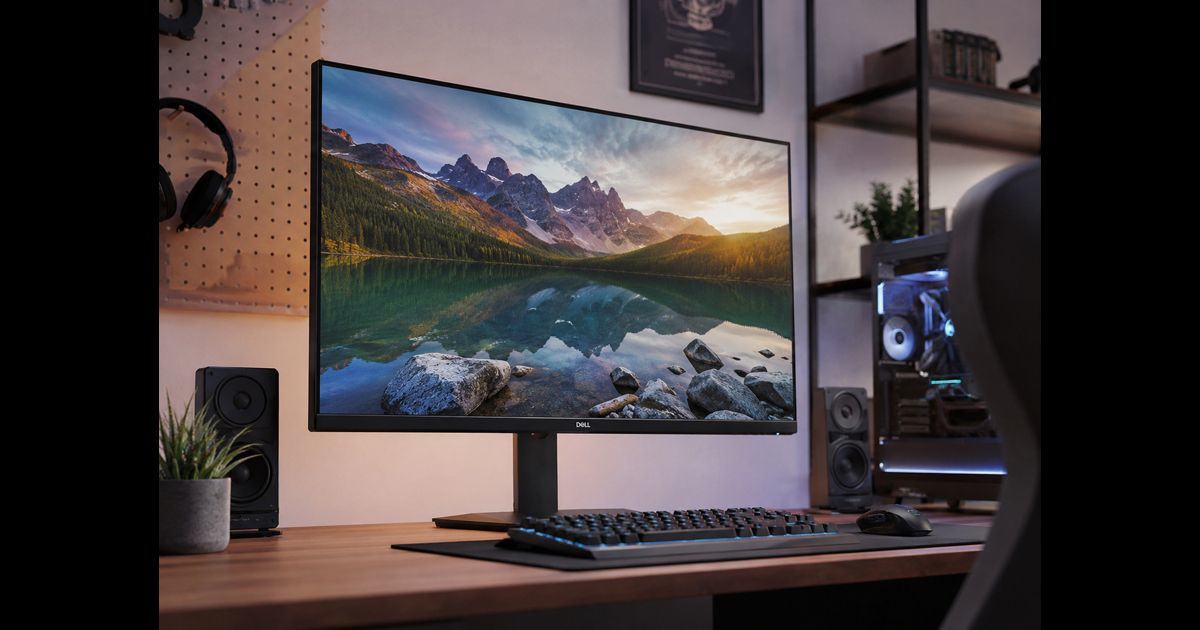
A good monitor is not defined by the largest number on its box. The right display makes text comfortable to read, shows images accurately enough for the work being done, connects at the expected resolution and refresh rate, and fits the available desk space without causing unnecessary strain.
The best starting point is the job the screen must perform most often. A display used for documents, spreadsheets, browsing, and video calls benefits most from sharp text, a stable stand, sensible brightness, and reliable USB-C or DisplayPort connectivity. Competitive games place greater value on motion clarity, refresh rate, response behavior, and variable refresh support. Photography, design, and video work demand controlled color, uniformity, and an appropriate color space.
Buying around the actual workload prevents expensive compromises.
Match Screen Size to Resolution and Viewing Distance
Screen size alone does not determine clarity. Resolution and viewing distance matter just as much.
A 24-inch 1080p monitor remains practical for compact desks, everyday office work, and budget-conscious setups. Text and interface elements are easy to operate without scaling, although fine detail is less crisp than on a higher-resolution screen.
For many people, 27 inches at 1440p is the balanced choice. It provides noticeably more workspace than 1080p, keeps text reasonably sharp, and does not place the same demand on a graphics card as 4K. It works well for mixed home-office use, programming, media, and gaming.
A 27- or 32-inch 4K monitor offers much finer detail and a larger working canvas. It is especially useful for detailed photo work, high-resolution video, dense spreadsheets, and viewing several documents at once. Operating-system scaling may be needed so menus and text remain comfortably sized.
Ultrawide screens can replace a two-monitor arrangement for people who keep several applications open side by side. Their width helps with editing timelines, large spreadsheets, dashboards, and multitasking. Before choosing one, measure desk depth as well as width; a large curved display needs enough distance to remain comfortable.
Choose the Panel for the Work, Not the Hype
IPS, VA, OLED, and mini-LED displays can all be excellent. The differences matter most in the environment and work being done.
- IPS panels are a strong all-round option. They generally offer stable viewing angles, good text clarity, and dependable color for office work and creative tasks.
- VA panels often deliver higher native contrast than IPS, which can make dark scenes look deeper. Motion behavior varies considerably by model, so review testing matters for fast games.
- OLED provides pixel-level light control, very deep blacks, and fast pixel response. It is compelling for games, films, and contrast-sensitive creative work. Static desktop use requires care because persistent interface elements can create uneven aging over time.
- Mini-LED LCD monitors use many dimming zones to improve HDR brightness and contrast. They can be a strong option for bright rooms and HDR production, though the number and behavior of dimming zones affect visible blooming around bright objects on dark backgrounds.
For long periods of spreadsheets, coding, documents, or web work, test text rendering in person when possible. Small text can look different across panel technologies and pixel layouts.
Refresh Rate and Response Time Are Different
Refresh rate is measured in hertz. A 60Hz monitor updates its image up to 60 times each second; 120Hz, 144Hz, 165Hz, and higher modes can make scrolling, cursor movement, and games appear smoother. Dell’s buying guidance similarly separates refresh rate, resolution, panel type, and screen size because each affects a different part of the experience.
Refresh rate does not guarantee clear motion by itself. Pixel transitions also need to be fast and well controlled. An aggressive overdrive setting may reduce some blur but introduce inverse ghosting or bright trails. Product specifications that quote a single “1ms” figure are not enough to predict real-world performance.
Variable refresh rate is valuable when frame rate changes during gameplay. It lets a compatible monitor adjust its refresh timing to the graphics output, reducing tearing and improving smoothness. VESA explains that Adaptive-Sync matches the display’s timing to the GPU’s rendering rate on a frame-by-frame basis.
For ordinary work, 75Hz or 100Hz can feel noticeably smoother than 60Hz. For fast games, select the refresh range your computer can realistically sustain at the chosen resolution and settings.
Treat HDR Claims Carefully
HDR is not a simple on-or-off feature. Meaningful HDR depends on brightness, contrast, black level, color range, local dimming or self-emissive pixels, and tone mapping.
A monitor may accept an HDR signal while producing only a limited improvement over SDR. Look for a verified VESA DisplayHDR certification rather than assuming that an “HDR-ready” label indicates strong HDR performance. VESA’s certification tiers test luminance, color gamut, bit depth, contrast-related performance, and other visible characteristics.
For HDR films and games, contrast control matters as much as peak brightness. OLED and high-quality mini-LED displays usually have an advantage here. For office work performed mostly in SDR, paying heavily for HDR may not deliver the biggest daily benefit; ergonomics, clarity, connectivity, and reliable brightness control may be more valuable.
Verify the Entire Connection Path Before Buying
The monitor’s headline specification is only achievable when every part of the connection supports it:
- The computer or graphics card must support the target resolution and refresh rate.
- The selected HDMI, DisplayPort, USB-C, or Thunderbolt port must have sufficient bandwidth.
- The cable must meet the required specification and be in good condition.
- A dock, adapter, KVM switch, or receiver must also support the desired signal.
- The operating system and monitor menu must be configured for the correct refresh mode.
A common surprise is receiving 60Hz from a monitor rated for 144Hz or higher. Some monitors allow their maximum mode only through a particular port, while some docks divide available bandwidth between displays. Dell’s support guidance specifically recommends checking each port’s supported maximum mode in the monitor documentation.
USB-C is convenient, but the label alone does not guarantee display output, charging power, data transfer, or a built-in hub. Confirm whether the laptop supports DisplayPort Alt Mode or Thunderbolt, how much power the monitor supplies, and whether the monitor can drive the required resolution and refresh rate through one cable.
Do Not Underestimate Ergonomics
A technically excellent panel can still be unpleasant if it cannot be positioned properly.
A useful stand should ideally provide height adjustment, tilt, and swivel. Pivot is useful for portrait documents and coding but is not essential for every desk. VESA mounting support creates flexibility for monitor arms, which can free desk space and improve alignment.
Place the display roughly an arm’s length away, with the top of the screen at or slightly below eye level for many seated users. Avoid placing bright windows directly behind or in front of the screen; reflections and excessive contrast between the screen and room can make extended viewing tiring.
Brightness should match the room instead of being left at maximum. A monitor that looks impressive in a showroom may be uncomfortably bright in a dim home office.
A Practical Specification Guide
|
Primary use |
Strong starting point |
Priorities |
|
Documents and office work |
24-inch 1080p or 27-inch 1440p IPS |
Ergonomic stand, text clarity, USB-C where useful |
|
Coding and multitasking |
27-inch 1440p/4K or ultrawide |
Workspace, scaling, stand adjustment, KVM or hub |
|
Fast-paced gaming |
24- to 27-inch 1080p/1440p high refresh |
Motion handling, adaptive sync, input latency, GPU fit |
|
Single-player games and films |
27- to 32-inch 4K OLED or mini-LED |
Contrast, HDR certification, reflections, connection bandwidth |
|
Photo and design work |
27-inch 4K IPS, OLED, or professional mini-LED |
Color-space coverage, calibration, uniformity, accurate modes |
|
Video editing |
27- to 32-inch 4K display |
Color workflow, sustained brightness, connectivity, workspace |
Build a Shortlist From Measurable Requirements
Write down the non-negotiable requirements before comparing models:
- Available desk width and depth
- Computer model, graphics hardware, and ports
- Preferred screen size and maximum workable resolution
- Main applications and games
- Need for USB-C charging, a hub, speakers, webcam, or KVM switching
- Bright-room or dark-room use
- Need for accurate color or dependable HDR
- Warranty terms, return policy, and dead-pixel policy
Then compare the models using full manuals and independent measurements, not retailer bullet points alone. Check maximum refresh rate by port, supported adaptive-sync range, brightness behavior, stand adjustments, and whether any premium mode requires compression or reduced color depth.
A display is part of a wider workstation, not an isolated purchase. The same careful approach used in cloud computing—checking capacity, compatibility, resilience, and ongoing management—also produces better monitor decisions.
Frequently Asked Questions
Is 1440p better than 4K?
Neither is automatically better. 1440p is easier for many graphics cards to run at high frame rates and works very well at 27 inches. 4K provides finer detail and more workspace, especially at 27 inches and above, but needs greater graphics performance and may require display scaling.
Is 120Hz useful for office work?
Yes. Higher refresh rates can make scrolling, pointer movement, and window motion feel smoother. It is a comfort improvement, not a requirement for productive work.
Is OLED suitable for a computer monitor?
OLED can be excellent for games, movies, and high-contrast visual work. People who display static spreadsheets, toolbars, dashboards, or documents for many hours should understand the manufacturer’s panel-care guidance and consider an IPS or mini-LED LCD alternative.
Does an HDR label mean the monitor has good HDR?
No. Check for an independently verified performance standard such as VESA DisplayHDR, then consider the panel technology, brightness, local dimming, and reviews that measure real HDR behavior.
Why does my high-refresh monitor run at 60Hz?
The limitation may come from the selected port, cable, dock, graphics hardware, or system settings. Verify the monitor’s maximum supported mode for the connection in use and select the intended refresh rate in the operating system.
Is a curved monitor better?
A curved screen can make a wide ultrawide display feel more natural at close range. It is a personal comfort preference rather than a universal quality improvement.
A monitor earns its place on a desk when its resolution, panel behavior, connectivity, and physical adjustment support the work done every day. Choose the whole system rather than one impressive specification, and the result will stay useful long after the purchase.