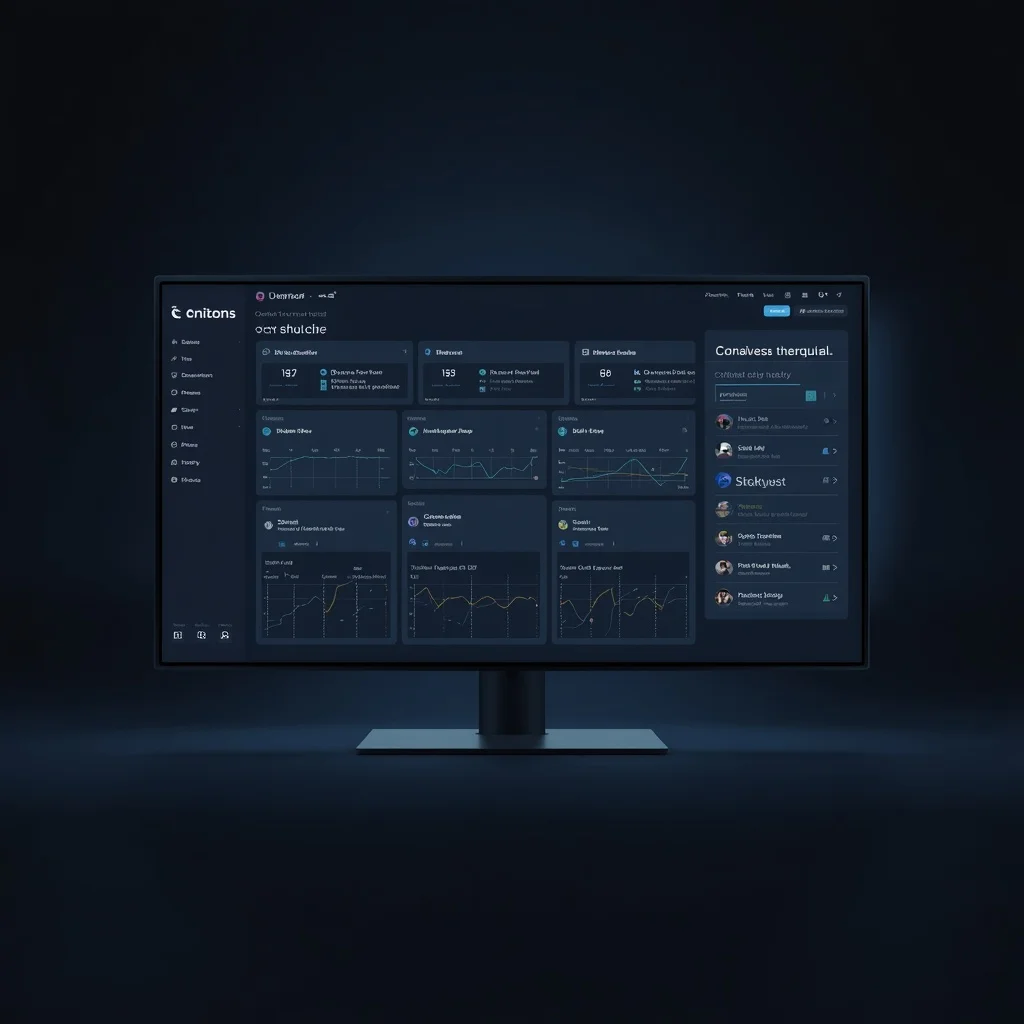
The word console appears throughout modern technology, but it does not refer to one universal type of product.
A console may be a command-line interface used by a developer, an administrative panel for managing a service, a cloud provider’s control interface, a monitoring environment, a browser developer console, or a physical gaming device. Some consoles primarily display information, while others allow users to make significant changes to systems and infrastructure.
Because the term is so broad, understanding a digital console starts with identifying what the interface actually controls, what information it displays, who can access it, and what actions users are allowed to perform.
A well-designed management interface can make complex systems easier to understand. A poorly designed or poorly secured one can create unnecessary complexity and risk.
This guide explains how digital consoles and management interfaces work, the differences between common types, what useful interfaces should provide, and what to verify before relying on one.
What Is a Digital Console?
In software and online services, a digital console is generally an interface through which users can view information, interact with a system, or perform management tasks.
The exact meaning depends on the context.
A console might be used to:
- View system status
- Change configuration
- Manage users
- Review logs
- Monitor infrastructure
- Run commands
- Control applications
- Inspect errors
- Manage cloud resources
- Review security events
Some consoles provide only a narrow set of functions. Others provide extensive administrative access.
The word itself therefore tells users very little about the actual capabilities of a system.
Those capabilities need to be established through the specific product, service, documentation, or interface being used.
Console, Dashboard, and Control Panel Are Not Identical
These terms are sometimes used interchangeably, but they describe different concepts.
Dashboard
A dashboard primarily summarizes information.
It may display:
- Metrics
- Alerts
- Status indicators
- Trends
- Tasks
- System health
- Operational information
The main purpose is visibility.
Management Console
A management console generally provides access to administrative or operational functions.
It may allow authorized users to:
- Configure settings
- Manage accounts
- Change permissions
- Control services
- Review resources
- Perform administrative actions
Control Panel
A control panel is another broad term for an interface that exposes settings or controls.
Hosting platforms, operating systems, applications, network devices, and many other technologies can have control panels.
The important distinction is not the label. It is what the interface actually allows a user to see and do.
For a deeper look at information-focused interfaces, see the guide to dashboard design and monitoring.
Command-Line Consoles
Not every console uses buttons, charts, or graphical controls.
Command-line interfaces allow users to interact with software by entering text commands.
They are widely used for:
- Server administration
- Software development
- Troubleshooting
- File operations
- Automation
- Package management
- System configuration
Command-line tools can provide powerful and precise control, but they may also allow highly consequential actions.
Users should understand the commands they execute, particularly when working with production systems, administrative privileges, or sensitive data.
Developer Consoles
Developer consoles provide technical information that helps developers inspect and troubleshoot software.
A browser developer console, for example, may display:
- Errors
- Warnings
- Network information
- JavaScript output
- Application messages
- Debugging data
Other development environments may provide consoles for logs, builds, deployments, APIs, testing, or application configuration.
A developer console should not automatically be confused with a general-purpose dashboard or infrastructure-management system.
Its purpose depends on the software or environment that provides it.
Cloud Management Consoles
Cloud providers commonly use web-based management interfaces to give authorized customers access to their cloud resources.
Depending on the provider and service, these interfaces may allow users to work with:
- Computing resources
- Storage
- Networking
- Databases
- Identity and access controls
- Monitoring
- Billing
- Applications
- Security settings
Cloud-management access can be highly privileged.
An account with broad administrative permissions may be able to create, modify, expose, or remove important infrastructure.
For that reason, cloud consoles require careful authentication, permission management, logging, and access review.
Server Management Interfaces
Servers may be managed through several types of interfaces.
Examples include:
- Command-line connections
- Hosting control panels
- Provider consoles
- Remote desktop systems
- Web administration panels
- Specialized infrastructure tools
The interface is only one part of server administration.
Reliable management also requires attention to software updates, access control, backups, monitoring, configuration, documentation, and recovery.
The remote access and server management guide covers these operational and security considerations in more detail.
Monitoring Consoles
Monitoring systems collect and present information about the state of applications, infrastructure, networks, workflows, or other processes.
A monitoring interface may help users identify:
- Service outages
- Performance degradation
- Resource limits
- Application errors
- Processing failures
- Unusual activity
- Delayed work
- Capacity problems
Good monitoring does more than collect large amounts of data.
It should help users distinguish ordinary conditions from situations that deserve investigation.
Too many metrics and alerts can make genuinely important changes harder to notice.
Administrative Consoles
Administrative interfaces can provide substantial control over a system.
Possible functions include:
- Creating users
- Changing roles
- Resetting credentials
- Configuring applications
- Managing integrations
- Reviewing logs
- Changing security settings
- Managing data
- Controlling services
Because administrative interfaces can affect other users and systems, access should be limited deliberately.
A person who only needs to view information may not need permission to change configuration.
This principle is commonly described as least privilege.
Centralization Has Benefits and Tradeoffs
Bringing related information into one interface can make management easier.
Centralization may reduce:
- Repeated navigation
- Scattered information
- Duplicate administration
- Difficulty locating important status information
However, centralization can also create concentration of risk.
If one administrative environment provides access to many systems, compromise of that environment can have broader consequences.
Organizations should therefore evaluate both usability and security when centralizing management.
Convenience alone is not enough reason to grant one account unrestricted access to everything.
Start With the System Being Managed
A management interface should be designed around the system and decisions it supports.
Before evaluating a console, identify:
- What it manages
- What information it displays
- Which users need access
- Which actions are permitted
- Which actions are high risk
- What happens when something fails
- Where detailed information can be found
Without this context, a large collection of controls can become difficult to understand.
The interface should reflect the actual responsibilities of its users.
Read-Only Views and Administrative Controls
Not every user needs the ability to make changes.
Separating read-only access from administrative access can reduce unnecessary risk.
For example, someone monitoring system status may need to see performance information without needing permission to:
- Delete resources
- Create users
- Change network settings
- Modify security policies
- Restart critical systems
Where the underlying technology supports it, roles should reflect genuine responsibilities.
Identity and Access Management
Access control is one of the most important parts of any administrative environment.
Organizations should know:
- Who has access
- Why they have it
- What permissions they hold
- When the access was granted
- Whether it is still required
Individual accounts are generally easier to manage than shared administrative credentials.
When several people share one login, it can become difficult to determine who made a particular change or who still knows the password.
Access should also be reviewed when employees change roles, contractors finish work, or systems are reorganized.
Authentication Needs Appropriate Protection
Administrative access deserves strong authentication.
Useful safeguards can include:
- Unique credentials
- Multi-factor authentication where supported
- Secure recovery processes
- Protected administrative devices
- Session controls
- Regular review of privileged accounts
The available security controls differ between systems.
Users should follow the documentation for the actual service they are using rather than assuming every console offers the same authentication features.
For broader guidance, see the QuikConsole Security Guide.
Interfaces Should Make Important States Clear
A useful console helps users understand what requires attention.
Important distinctions may include:
- Healthy vs unavailable
- Active vs stopped
- Pending vs complete
- Normal vs abnormal
- Authorized vs unauthorized
- Successful vs failed
Statuses should be defined clearly.
Ambiguous labels can lead different users to interpret the same information differently.
Where consequences are important, users should also be able to reach the evidence or detailed records behind the status.
Logs and Activity Records
Many management environments generate activity records.
Depending on the system, logs may include:
- Sign-ins
- Configuration changes
- Administrative actions
- Failed operations
- System errors
- Service events
- Security activity
Logs can help with troubleshooting and incident investigation.
However, collecting logs alone is not sufficient.
Organizations should understand which events matter, how long records need to be retained, who can view them, and how important events are reviewed.
Search and Filtering
As systems grow, locating relevant information becomes harder.
Useful management interfaces often allow users to narrow information by factors such as:
- Time
- Status
- User
- Resource
- Severity
- Project
- Environment
- Category
Filters should help users reach relevant information quickly rather than simply exposing more controls.
Default views should also avoid hiding critical conditions through poorly chosen filters.
Tasks and Workflows
Some management environments connect operational information with tasks or workflow stages.
These concepts should still be distinguished from the console itself.
A task is an action that needs to be completed.
A workflow is the sequence through which work moves.
A dashboard or management interface may display information about those processes, but structured task management depends on clear ownership, priorities, dependencies, and completion criteria.
The task management and workflows guide explains how those systems can be designed without unnecessary complexity.
Automation and Management Interfaces
Management interfaces may also expose information about automated processes.
Automation can help with predictable activities such as:
- Notifications
- Status changes
- Scheduled processes
- Data transfers
- Routine task creation
- Repetitive administrative steps
AI may be incorporated into some automation systems to classify, summarize, extract, or process information.
Those capabilities depend entirely on the specific technology being used.
A console should not be assumed to provide AI or automation merely because it is described as modern or centralized.
The AI-driven workflow automation guide explains the distinction between rule-based automation, AI assistance, human oversight, permissions, and monitoring.
Integrations Need Careful Review
Management systems sometimes connect with other applications through APIs, plugins, integrations, or service accounts.
Every connection can introduce new permissions and data flows.
Before enabling an integration, determine:
- What information it can access
- Whether it can modify data
- Which account authorizes it
- What credentials it uses
- Whether access can be restricted
- How the connection can be revoked
- What happens if the integration fails
Unused integrations should not remain connected indefinitely.
Protect API Credentials
APIs and integrations may rely on:
- API keys
- Tokens
- Secret keys
- Service credentials
These should be treated as sensitive.
They should not be casually exposed in:
- Public code
- Screenshots
- Shared documents
- Public repositories
- Support forums
- Unprotected configuration files
If a credential becomes exposed, deleting the visible copy may not be enough. Revocation and replacement may be required.
Data Quality Affects Every Console
An interface can only be as reliable as the information behind it.
A polished dashboard may still be misleading when data is:
- Delayed
- Incomplete
- Duplicated
- Incorrectly filtered
- Collected inconsistently
- Based on different definitions
Users should understand where important information comes from and how frequently it is updated.
A visually impressive interface should not create false confidence in unreliable data.
Real-Time Information Is Not Always Necessary
Real-time data can be valuable for operational incidents, infrastructure monitoring, or rapidly changing systems.
Other decisions may only require hourly, daily, weekly, or monthly information.
Faster updates often require more infrastructure and processing.
The refresh rate should therefore match the decision being supported.
Displaying when information was last updated can help users interpret the data correctly.
Alerts Should Be Actionable
Monitoring environments often include alerts.
An alert should normally correspond to something that may require attention.
Excessive low-value alerts create notification fatigue and make serious events easier to overlook.
A useful alert should help answer:
- What happened?
- What is affected?
- How serious is it?
- When did it begin?
- Who should investigate?
- Where can more detail be found?
Thresholds should also be reviewed as systems change.
High-Impact Actions Need Safeguards
Some console actions can have serious consequences.
Examples include:
- Deleting data
- Removing infrastructure
- Changing security permissions
- Disabling accounts
- Modifying production systems
- Publishing information
- Changing network access
The greater the potential impact, the stronger the control should be.
Depending on the environment, safeguards may include:
- Restricted roles
- Confirmation steps
- Approval
- Activity logging
- Backups
- Rollback procedures
Ease of use should not make destructive actions unnecessarily easy.
Recovery Is Part of Management
Reliable management is not only about keeping systems working normally.
It also requires knowing what to do when something goes wrong.
Recovery planning may include:
- Data backups
- Configuration backups
- Rollback procedures
- Account recovery
- Alternative access methods
- Incident contacts
- Restoration testing
A management interface should not become a single point of failure without an alternative recovery path.
Security and Convenience Need Balance
The most convenient configuration is not always the safest.
Examples of convenient but risky practices include:
- Sharing one administrator account
- Granting everyone full permissions
- Leaving management interfaces publicly exposed
- Saving credentials insecurely
- Disabling security controls to make access easier
Good management systems aim to preserve usability while limiting unnecessary exposure.
Security should be designed into administrative processes rather than added only after a problem occurs.
Documentation Matters
Management environments become harder to operate when only one person understands them.
Useful documentation may explain:
- What the system manages
- Which teams use it
- Important roles
- Access procedures
- Major integrations
- Critical alerts
- Recovery processes
- Known dependencies
Documentation should not become an insecure storage location for passwords or secret keys.
Its purpose is to preserve operational knowledge.
Evaluate the Product, Not the Category Name
Terms such as:
- Digital console
- Smart dashboard
- Management platform
- Control center
- AI console
- Unified workspace
are broad descriptions.
They do not establish what a particular product actually provides.
Before relying on a service, verify its real functionality through:
- Working interfaces
- Official documentation
- Product specifications
- Supported integrations
- Security information
- Pricing where applicable
- Terms and privacy information
- Technical requirements
Marketing terminology should not substitute for demonstrable functionality.
Beware of Similar Names
Technology products and websites can have very similar names while being completely unrelated.
Differences may include:
- Domain extension
- Hyphenation
- Additional letters
- Different company ownership
- Different product categories
Before logging in, downloading software, connecting an account, or following technical instructions, verify the exact product and domain involved.
Information about one similarly named service should not automatically be applied to another.
How to Evaluate a Digital Console
A practical evaluation can focus on the following areas.
Purpose
What specific problem does the interface solve?
Functionality
Which functions can actually be demonstrated?
Access
Who can use it, and what permissions are available?
Usability
Can important information and controls be found without unnecessary complexity?
Data
Where does the displayed information come from, and how current is it?
Security
How are authentication, permissions, sessions, credentials, and administrative actions protected?
Integrations
Which external systems can connect, and what access do they receive?
Reliability
What happens when the interface, integration, or underlying service is unavailable?
Recovery
Can important changes or failures be reversed?
Documentation
Are important capabilities and limitations clearly documented?
The answers matter more than whether a service uses the word “console” in its name.
A Practical Digital Console Checklist
Before depending on a management interface, verify that:
- Its actual purpose is clear.
- Claimed features can be demonstrated.
- Users have individual access where appropriate.
- Permissions reflect responsibilities.
- Strong authentication is available where needed.
- Sensitive administrative actions are restricted.
- Important information has reliable data sources.
- Data freshness is appropriate.
- Alerts have clear purposes.
- Logs are available where necessary.
- Integrations have limited permissions.
- API credentials are protected.
- Recovery processes exist.
- Important changes can be traced.
- Documentation is available.
- Unused accounts and connections are removed.
- Similar products or domains are not being confused.
A system does not become more useful simply because it combines more features into one interface.
Its value depends on whether it provides the right information and controls safely, clearly, and reliably.
Frequently Asked Questions
What is a digital console?
A digital console is a broad term for an interface used to view information, interact with software, or manage digital systems. Its actual functions depend on the technology providing it.
Is a dashboard the same as a console?
No. A dashboard primarily summarizes information, while a console may provide additional controls or administrative capabilities.
Is every digital console a cloud platform?
No. Some cloud services provide management consoles, but the word console itself does not imply cloud infrastructure.
Do digital consoles manage tasks?
Some products may integrate task-management functions, while others have no task features at all. The capability must be verified for the specific product.
Do all consoles provide monitoring?
No. Monitoring is common in certain administrative and infrastructure systems, but it should not be assumed from the name alone.
Can a digital console use AI?
Some software may incorporate AI capabilities, but a digital console is not inherently an AI product.
Are centralized consoles safer than separate tools?
Not automatically. Centralization can simplify management but may also concentrate privileged access. Security depends on authentication, permissions, system design, configuration, and operational practices.
Why are permissions important?
Management interfaces may expose sensitive information or powerful controls. Limiting users to the permissions required for their responsibilities reduces unnecessary access.
How should a digital console be evaluated?
Evaluate what it actually does, the reliability of its data, security controls, user permissions, integrations, documentation, recovery options, and whether its functionality matches the intended use.
Does the word “console” prove that software exists?
No. A product name or technology-oriented term does not prove the existence of any particular software functionality. Features should be verified through the actual product or reliable documentation.
Final Thoughts
Digital consoles are useful as a technology concept because many systems need a clear interface through which users can monitor information or perform authorized actions.
But the term is broad.
A developer console, cloud-management interface, server-control panel, monitoring dashboard, and administrative console can perform completely different jobs.
The safest and most useful approach is therefore to evaluate the actual system rather than infer capabilities from its name.
Look for demonstrable functionality, reliable information, appropriate permissions, strong security, clear documentation, sensible integrations, and a recovery path when something goes wrong.
A good management interface reduces complexity without hiding the controls, responsibilities, and risks behind it.

Pingback: QuikConsole Dashboard: Monitoring & Console Management
Pingback: QuikConsole Productivity: Tasks, Workflows & Efficiency
Pingback: QuikConsole Automation: AI-Driven Workflows & Tasks
Pingback: QuikConsole Review: Features, Benefits, and User Experience - Quikconsole com
Pingback: Digital Console Access Control Checklist: Users & Audit Logs